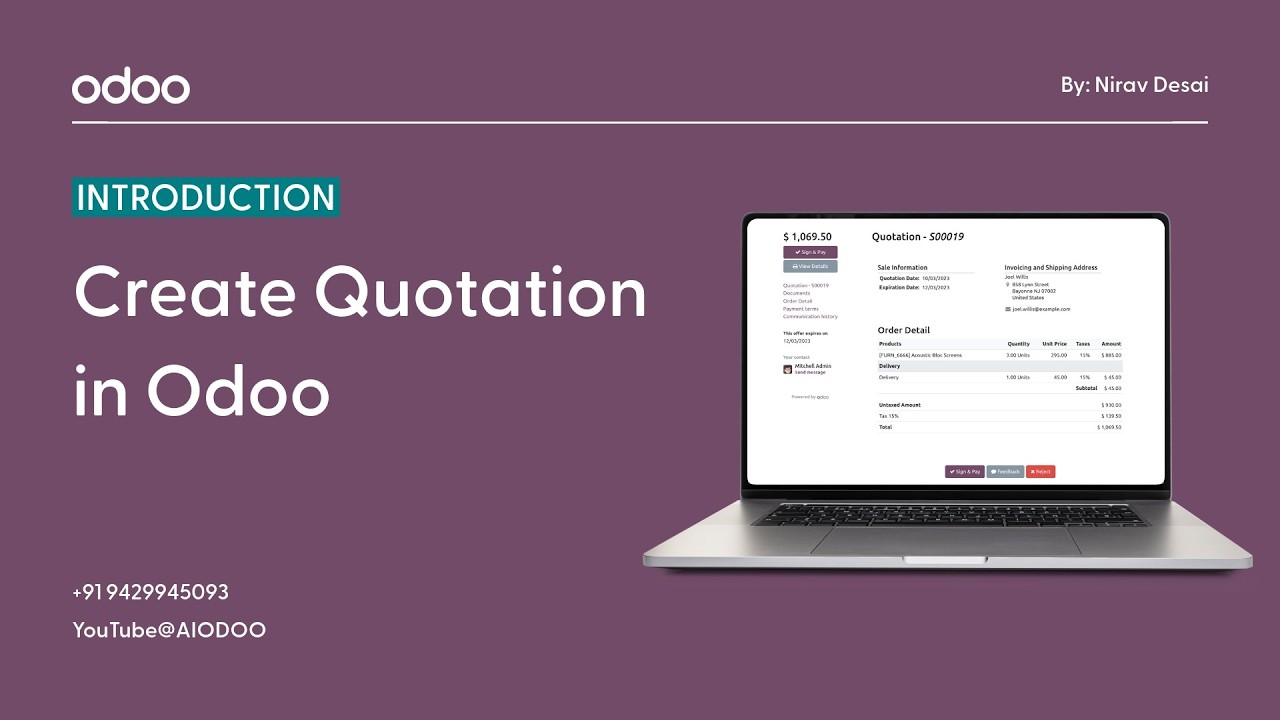
How to Create Quotations in Odoo | Custom Quotation Template Guide
First impressions in business happen more often than you think — and one of the most overlooked ones is the quotation you send a potential customer.
Think about it. A customer asks for your pricing. You send them back a plain-text email, or worse, a hastily formatted Word document with inconsistent fonts and no company logo. Before they’ve even seen your price, they’ve already formed an opinion about how professional your business is.
Now imagine the opposite. They receive a clean, branded, professionally formatted PDF with your logo, your colors, clearly listed products and pricing, and your terms neatly laid out at the bottom.
Same price. Completely different impression.
That’s exactly what Odoo’s Quotation System helps you achieve — every single time, for every single customer, without spending hours designing documents from scratch.
What Exactly Is a Quotation in Odoo?
A quotation in Odoo is a formal sales document that you send to a customer before they confirm an order. It’s your way of saying — “here’s what we’re offering, here’s the price, and here are the terms.”
But in Odoo, a quotation is much more than just a document. It’s a live record inside your sales workflow that connects directly to everything that comes after it.
A typical Odoo quotation includes:
- Customer Information — name, company, billing address, and contact details pulled automatically from your Contacts Module
- Products or Services — a detailed line-by-line breakdown of exactly what you’re offering
- Quantity — how many units, hours, or items are being quoted
- Pricing — unit prices, subtotals, and final amounts configured according to your price lists
- Taxes — automatically calculated based on your tax configuration and the customer’s location
- Terms and Conditions — your standard business terms displayed clearly at the bottom of the document
And here’s the part that makes Odoo quotations genuinely powerful — when a customer says yes, you confirm the quotation and it instantly becomes a Sales Order. No re-entering data, no copying information across systems. One click and the entire workflow moves forward seamlessly.
How to Create a Quotation in Odoo — Step by Step
Creating a quotation in Odoo is one of those things that sounds more complicated than it actually is. Once you’ve done it once, you’ll wonder why you ever did it any other way.
Here’s exactly how it works:
Step 1 — Open the Sales Module. From your Odoo dashboard, navigate to the Sales app. This is your home base for everything quotation and order-related.
Step 2 — Click “Create Quotation.” Hit the Create button, and a fresh quotation form opens up — clean, structured, and ready to fill in.
Step 3 — Select Your Customer Start typing the customer’s name, and Odoo pulls up matching records from your Contacts database. Select the right one and its details — address, email, phone — populate automatically. If it’s a new customer, you can create them on the spot without leaving the quotation form.
Step 4 — Add Your Products or Services. Click “Add a Product” and start building your line items. Search for products from your catalog, enter quantities, and Odoo pulls in the pricing automatically. Need to add a custom line item or a note? That’s easy too.
Step 5 — Configure Pricing and Taxes Review the pricing, apply any applicable discounts, check that taxes are calculated correctly, and make any adjustments needed. If you have multiple price lists set up — for different regions, customer tiers, or currencies — you can select the right one here.
Step 6 — Save and Send the Quotation Once everything looks right, save the quotation. From here, you can preview it as a PDF, send it directly to the customer by email straight from Odoo, or download it to share through another channel. The PDF is automatically formatted, professionally laid out, and ready to impress.
The whole process — from blank form to sent quotation — can be done in under five minutes once you’re comfortable with the system.
Why Should You Customize Your Quotation Templates?
Out of the box, Odoo’s quotation templates already look clean and professional. But if you really want your documents to reflect your brand and stand out from the competition, customization is where things get exciting.
Here’s why businesses invest time in customizing their quotation templates:
- Stronger Branding — A quotation with your logo, your brand colors, and your visual identity doesn’t just look better — it reinforces your brand every single time a customer opens it. Consistency builds recognition, and recognition builds trust.
- Better First Impressions — Customers often receive quotations from multiple vendors. A polished, branded document immediately signals that you take your business seriously. It sets you apart before the customer has even looked at the price.
- Standardized Sales Documents — When every quotation looks the same — same layout, same structure, same branding — it creates a sense of professionalism and reliability. Your customers know what to expect, and your team doesn’t have to reinvent the wheel every time.
- Increased Customer Confidence — There’s a psychological element here that’s hard to ignore. A well-presented quotation makes customers more confident in your business. If you care this much about how a document looks, they assume you care just as much about the quality of your product or service.
- Efficiency at Scale — Once your template is customized and set up, every quotation you generate automatically follows that format. No manual formatting, no design decisions every time — just consistent, professional output at the click of a button.
What Can You Actually Customize in Odoo Quotations?
Odoo gives businesses a solid range of customization options to make quotation templates truly their own. Here’s what you can tailor:
- Company Logo — Upload your logo once and it appears on every quotation, invoice, and sales document automatically
- Header and Footer — Add custom header content like your tagline or registration number, and footer details like bank information or contact details
- Colors and Visual Style — Match the document’s color scheme to your brand palette for a cohesive, professional look
- Terms and Conditions — Set your standard business terms once and they appear on every quotation without anyone having to type them out each time
- Layout Structure — Adjust how information is displayed — column arrangements, section breaks, and the overall flow of the document
- Additional Branding Elements — Add custom messages, promotional text, or any other brand elements that make your quotations uniquely yours
The level of customization available means that whether you run a consultancy, a product business, a service company, or a manufacturing operation, your quotations can be configured to match exactly how you present yourself to the world.
The Real Benefits of Using Odoo for Quotation Management
Let’s zoom out and look at the bigger picture — because the benefits of using Odoo’s quotation system go well beyond just looking professional:
- Faster Quotation Creation — With product catalogs, customer data, and pricing already in the system, creating a complete quotation takes minutes rather than the hours it might take when doing things manually
- Automatic Professional PDF Generation — Every quotation is instantly available as a formatted, print-ready PDF without any design work required from your team
- Better Customer Communication — Send quotations directly from Odoo via email, track whether they’ve been opened, and follow up at exactly the right moment
- Fully Integrated Sales Workflow — Quotations don’t exist in isolation — they’re connected to your CRM pipeline, your inventory, your invoicing, and your reporting. When a quotation is confirmed, the whole system moves forward together
- Easy Tracking and Management — See all your open quotations at a glance. Know which ones have been sent, which are awaiting confirmation, which have been converted to orders, and which have expired — all from a single organized view
When you add all of this up, the impact on your sales team’s efficiency is significant. Less time on admin, more time on selling, and a consistently professional output that builds your reputation with every document you send.
Also Read : Odoo Sales Module Overview | Complete Sales Workflow Explained
A Pro Tip for Getting the Most Out of Odoo Quotations
Once you’ve set up your customized template, take the time to also configure your default product descriptions and internal notes within the system. When your sales team creates quotations, having pre-written product descriptions means less typing, fewer errors, and a more consistent experience for customers reading your documents.
Small effort upfront, massive time savings across hundreds of quotations down the line.
The Bottom Line
A quotation is often the first formal document a potential customer receives from your business. It sets the tone for the entire commercial relationship that follows.
Odoo gives you the tools to make that first impression count — every single time. A fast, connected, customizable quotation system that integrates with your entire sales workflow, generates professional PDFs automatically, and scales effortlessly as your business grows.
Whether you’re sending five quotations a month or five hundred, Odoo ensures that every single one looks like it came from a business that takes quality seriously.
Because it does. And now your documents will show it.
Watch the full video for a practical step-by-step demonstration: